
.akr files to save and share setup state. Export the whole Akron setup or a single scoped section. These packs are separate from the Backups tab’s Celeste save-folder ZIPs.
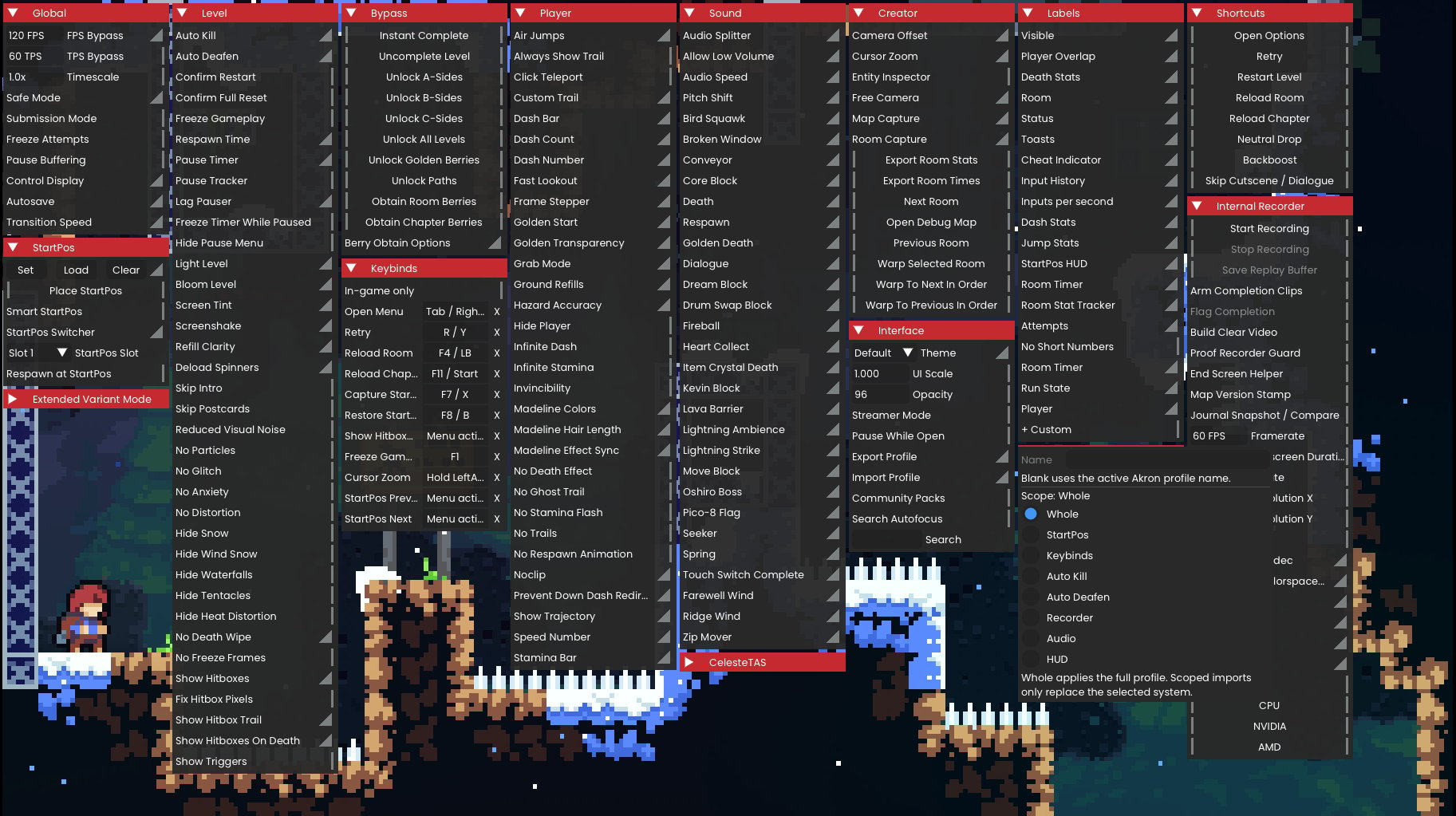
Export a .akr pack
1
Open the Interface tab
Open the Akron overlay, go to Interface, and choose Export Setup.
2
Choose the scope
Select Whole for all portable setup state, or choose StartPos, Keybinds, Auto Kill, Auto Deafen, Recorder, Audio, or HUD.
3
Export the pack
Confirm the export to write the
.akr file to the Akron setup export directory.4
Review before sharing
Check the file name, scope, and intended map or context before sharing the pack.
Import a .akr pack
1
Back up current settings
Export your current setup before importing a shared pack.
2
Open the import flow
Open the Akron overlay, go to Interface, and choose Import Setup.
3
Choose the import scope
Select Whole to import all portable setup state. For scoped packs, choose the target section before selecting the
.akr file.4
Select the pack
Choose the
.akr file. Akron imports it immediately using the scope selected above.5
Test the imported settings
Test the changed settings in a non-submission context.
Section behavior
Scoped imports replace only the selected portable section and do not reset unrelated settings. Setup packs preserve the screenshot export path; recording output folder, filename template, replay auto-start mode, and colorspace arguments; audio-splitter state and device selections; and the Auto Deafen hotkey. Whole packs preserve these machine-local values too.
See Akron .akr archives for the archive format.